Memberships Create/Details
Parks & Rec > Memberships> Create (or Search > Edit)
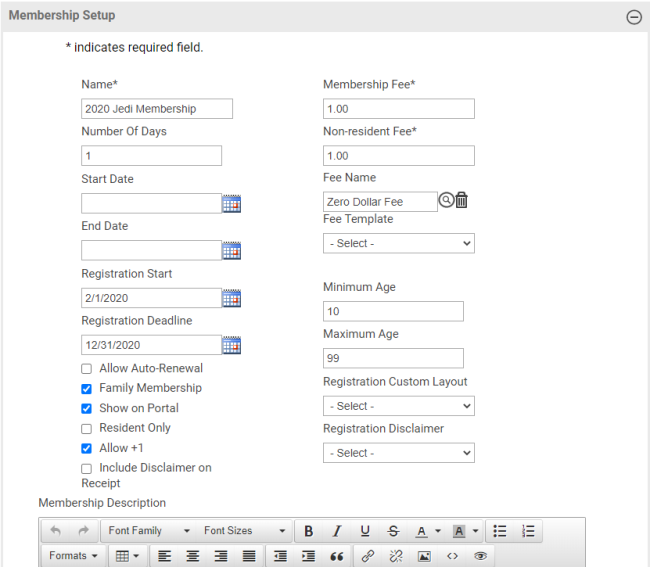
The Allow Auto-Renewal check box makes the current membership available for automatic renewal. When this option is selected, the Allow ACH Payment check box also is available.
The Family Membership check box allows access for any contact's family members. Qualified family members are those who appear in the Family Members section of the contact's page and who meet applicable age restrictions:
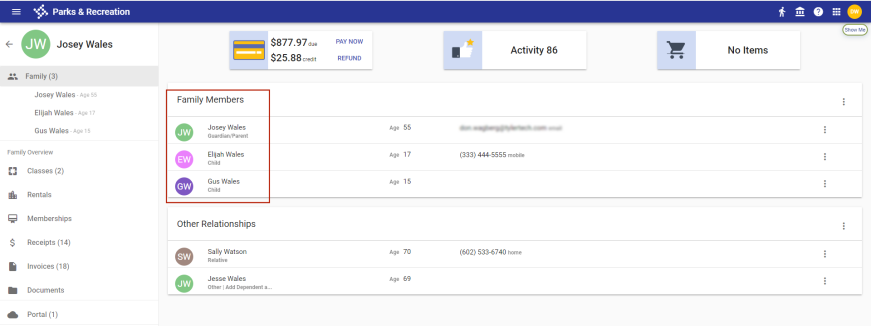
Gold Family chips identify family memberships in the Memberships section of the contact's page:
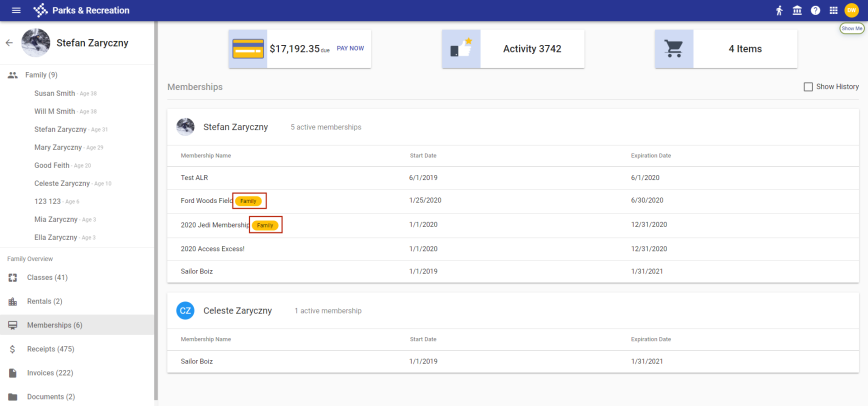
This Family chip also displays on the contact's sign-in page:
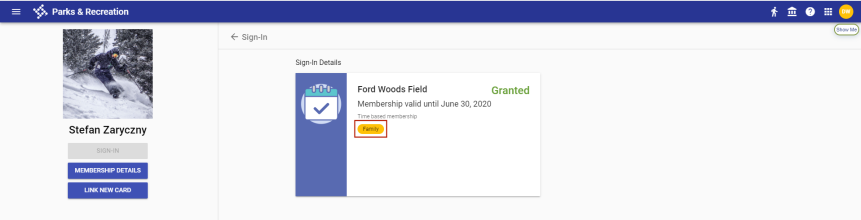
The Allow +1 check box, when marked, allows a member to include another person at membership sign-in. When the member's name is selected in the Contact field, an ADD +1 (OPTIONAL) field displays to let you add the name of a second person
 Membership Members
The Membership Members section contains the names of those who have joined the membership.
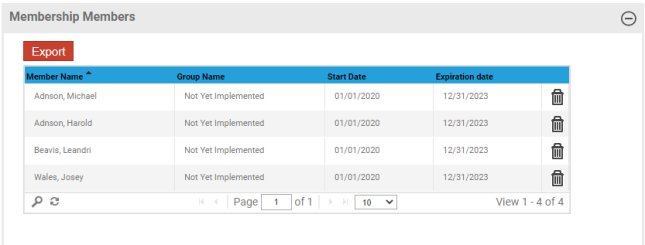
To export member information to Excel, click the Export button.
To remove a member from the list, click the corresponding Delete icon.
Membership Privileges
The Membership Privileges table displays the privileges that have been applied to the selected membership.
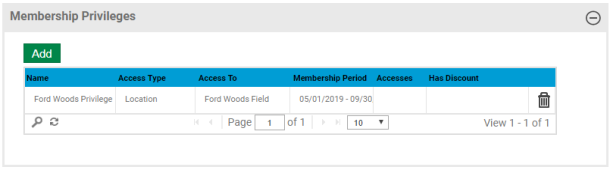
To add a privilege, click the Add button, and select from the Privilege Selection dialog. (Privileges that are available for selection are set up at Parks & Rec > Memberships > Privileges.)
To delete a privilege, select the corresponding row in the table, and click the trash can icon.
Discounts
The Discounts table displays the discounts that have been set up in Administration and applied to the selected membership.
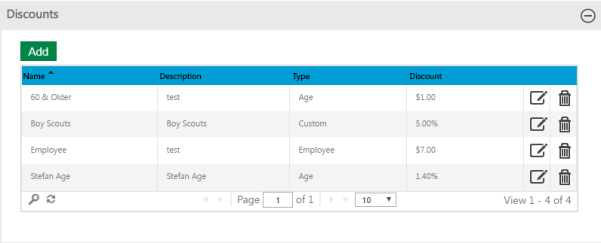
Clicking the Add button opens a dialog of the discounts that are available to be applied to the membership.
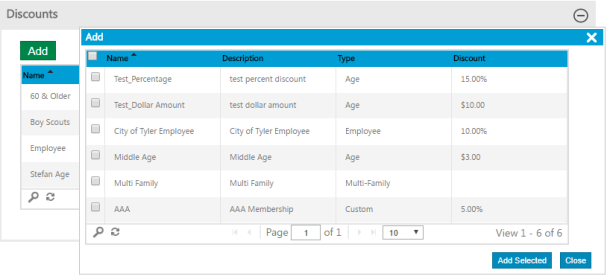
To apply a discount, select the corresponding check box, and click Add Selected.
Clicking the Edit icon opens the Discount Details page, where the details of the discount are available for editing.
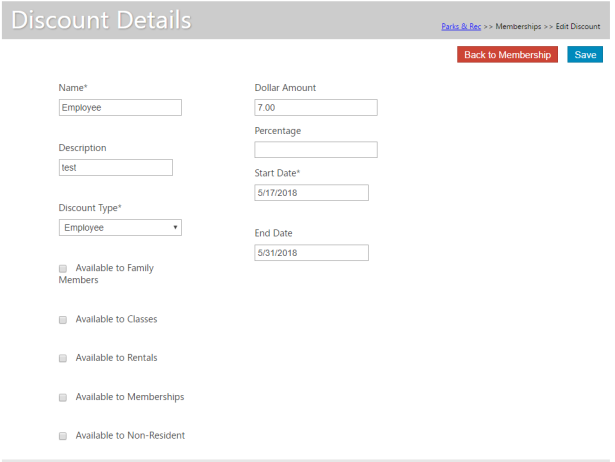
To return to the Membership Details page from the Discount Details page, click the Back to Membership button.